
In Part 1, we learned how Kotlin Multiplatform (KMP) and Compose Multiplatform (CMP) let us build shared logic that works on iOS, Android, Desktop, and Web.
Now it’s time to build something practical.
In this part, we will create a real, production-ready shared module that:
- Fetches data from the DummyJSON API
- Stores that data in Firebase Firestore
- Exposes shared ViewModels using KMP
Is consumed by:
- iOS (SwiftUI app)
- Android (Jetpack Compose app)
- Desktop (Compose Desktop)
By the end, you’ll have a fully working Architecture where API → Shared ViewModel → Firebase → UI works across platforms from one codebase.
What we’ll cover first
To keep things incremental and easier to reason about, we’ll start with the foundation:
- Integrating a remote REST API using Ktor
- Defining shared data models and repositories
- Exposing data through a shared ViewModel
- Displaying the data in a shared Compose UI
At this stage, the data will flow directly from API → ViewModel → UI.
What we’ll add next
Once the API integration and UI are in place, we’ll extend the same architecture to Persist the data in Firebase Firestore
This layered approach reflects how real-world apps are built — starting simple, validating the flow, and then adding persistence and resilience.
Let’s begin with the API integration.
Architecture Overview
DummyJSON API
      ↓
Ktor HttpClient (commonMain)
      ↓
Repository (commonMain)
      ↓
Shared ViewModel (StateFlow)
      ↓
Compose UI (Android / iOS / Desktop)
This structure keeps:
- Networking in
data - Business logic in
domain - UI + state in
presentation
Step 1: Defining Shared Data Models
All models live in commonMain, so they can be reused everywhere.
Product Model
@Serializable
data class Product(
    val id: Int,
    val title: String,
    val description: String,
    val thumbnail: String
)
API Response Wrapper
@Serializable
data class ProductsResponse(
    val products: List<Product>
)
We use kotlinx.serialization so the same models work seamlessly on all platforms.
Step 2: Networking with Ktor (Shared API Client)
Next, we create a shared API client using Ktor.
object ApiClient {
private val client = HttpClient {
       install(ContentNegotiation) {
        json(Json { ignoreUnknownKeys = true })
     }
 }
suspend fun fetchProducts(): List<Product> {
        val response: ProductsResponse =
            client.get("https://dummyjson.com/products?limit=10").body()
        return response.products
    }
}
Why this works well with KMP
- Ktor provides platform-specific engines automatically
- JSON parsing is fully shared
- No Android or iOS-specific code leaks into common logic
Step 3: Repository Layer
The repository abstracts the data source from the rest of the app.
class ProductRepository {
suspend fun getProducts(): List<Product> {
        return ApiClient.fetchProducts()
    }
}
This makes it easy to later:
- Add caching
- Introduce Firebase / local DB
- Swap APIs without touching UI code
Step 4: Shared ViewModel using StateFlow
Now we expose the data to UI using a shared ViewModel.
class ProductViewModel {
private val repository = ProductRepository()
private val _products = MutableStateFlow<List<Product>>(emptyList())
    val products: StateFlow<List<Product>> = _products
init {
     loadProducts()
 }
private fun loadProducts() {
        CoroutineScope(Dispatchers.Default).launch {
            _products.value = repository.getProducts()
        }
    }
}
Why StateFlow?
- Works perfectly with Compose
- Easy to observe on all platforms
- Lifecycle-safe when integrated properly
Step 5: UI — Product Item with Image Loader
We now render products using Compose Multiplatform UI.
@Composable
fun ProductItem(product: Product) {
    Card(
        modifier = Modifier.fillMaxWidth(),
        elevation = CardDefaults.cardElevation(4.dp)
    ) {
        Row(
            modifier = Modifier.padding(12.dp),
            verticalAlignment = Alignment.CenterVertically
        ) {
              Box(
                modifier = Modifier
                    .size(80.dp)
                    .clip(RoundedCornerShape(8.dp))
                    .background(MaterialTheme.colorScheme.surfaceVariant),
                contentAlignment = Alignment.Center
            ) {
                KamelImage(
                    resource = asyncPainterResource(product.thumbnail),
                    contentDescription = product.title,
                    modifier = Modifier.fillMaxSize(),
                    onLoading = {
                        CircularProgressIndicator(
                            modifier = Modifier.size(24.dp),
                            strokeWidth = 2.dp
                        )
                    },
                    onFailure = {
                        Text("No Image")
                    }
                )
            }
            Spacer(Modifier.width(12.dp))
            Column {
                Text(product.title, style = MaterialTheme.typography.titleMedium)
                Spacer(Modifier.height(4.dp))
                Text(product.description, maxLines = 2)
            }
        }
    }
}
Here we use Kamel for image loading, which works across Android, iOS, and Desktop.
Step 6: Product Screen
@Composable
fun ProductScreen() {
    val viewModel = remember { ProductViewModel() }
    val products by viewModel.products.collectAsState()
    Scaffold(
        topBar = {
            CenterAlignedTopAppBar(
                title = { Text("Products") }
            )
        }
    ) { paddingValues ->
        LazyColumn(
            modifier = Modifier
                .fillMaxSize()
                .padding(paddingValues)
                .padding(horizontal = 16.dp),
            verticalArrangement = Arrangement.spacedBy(12.dp)
        ) {
            items(products) { product ->
                ProductItem(product)
            }
        }
    }
}
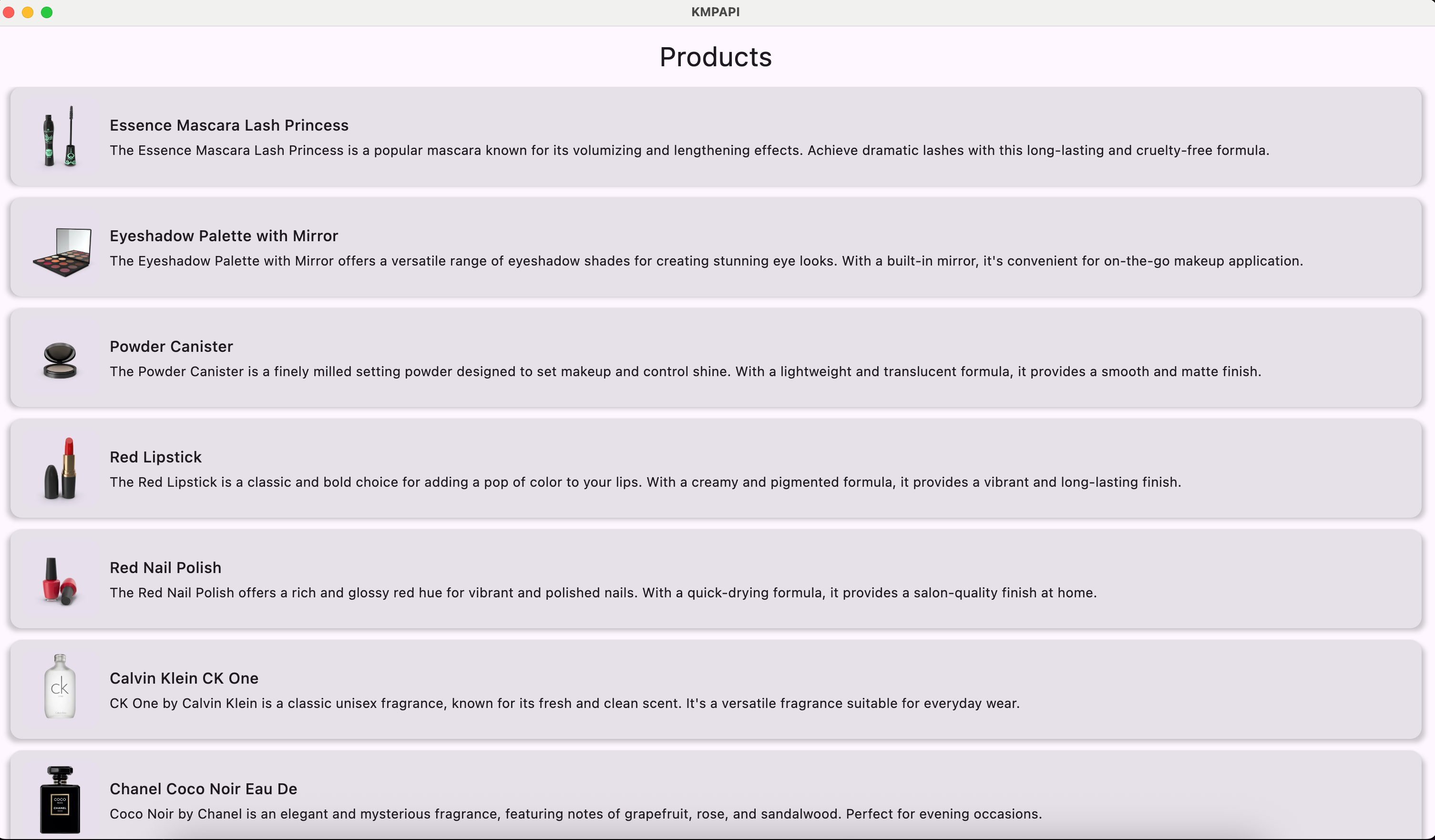
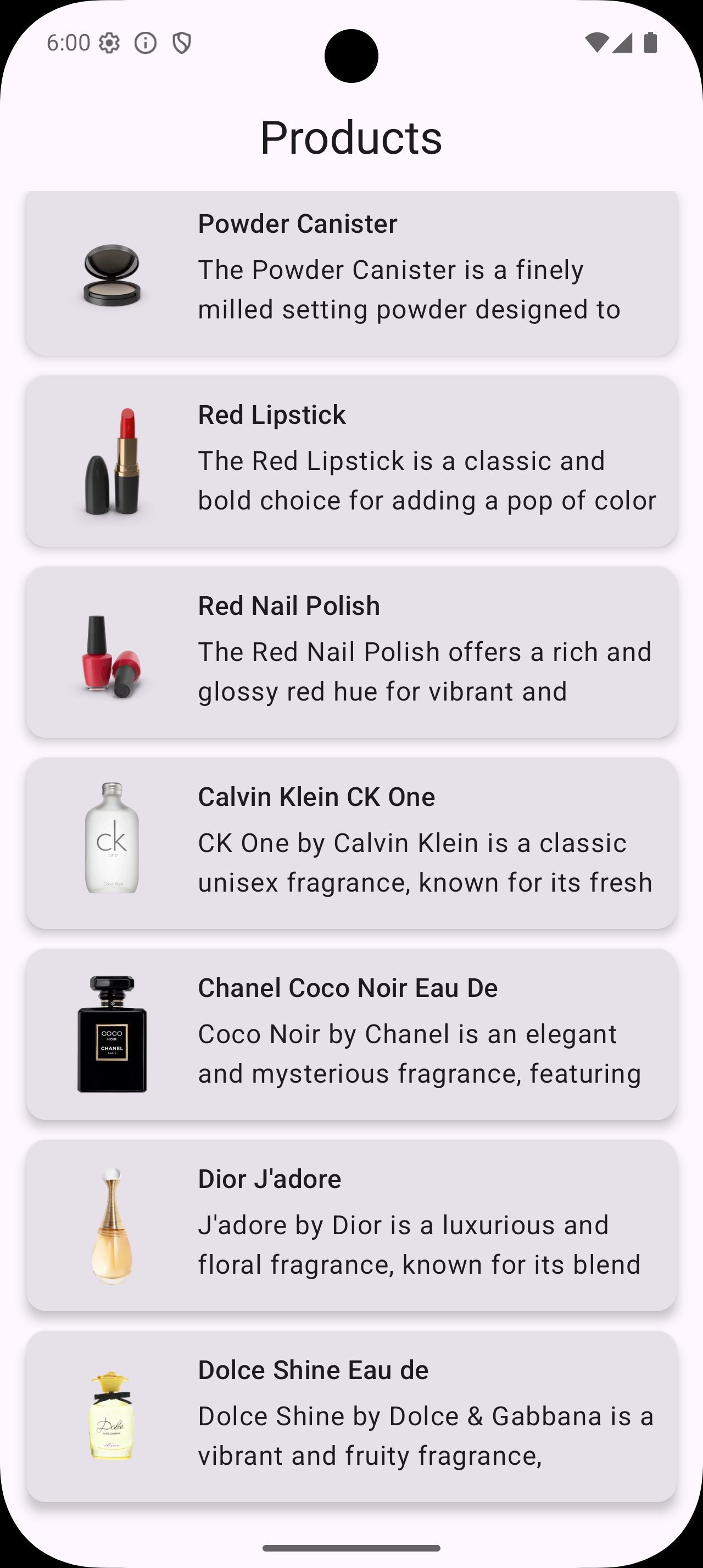
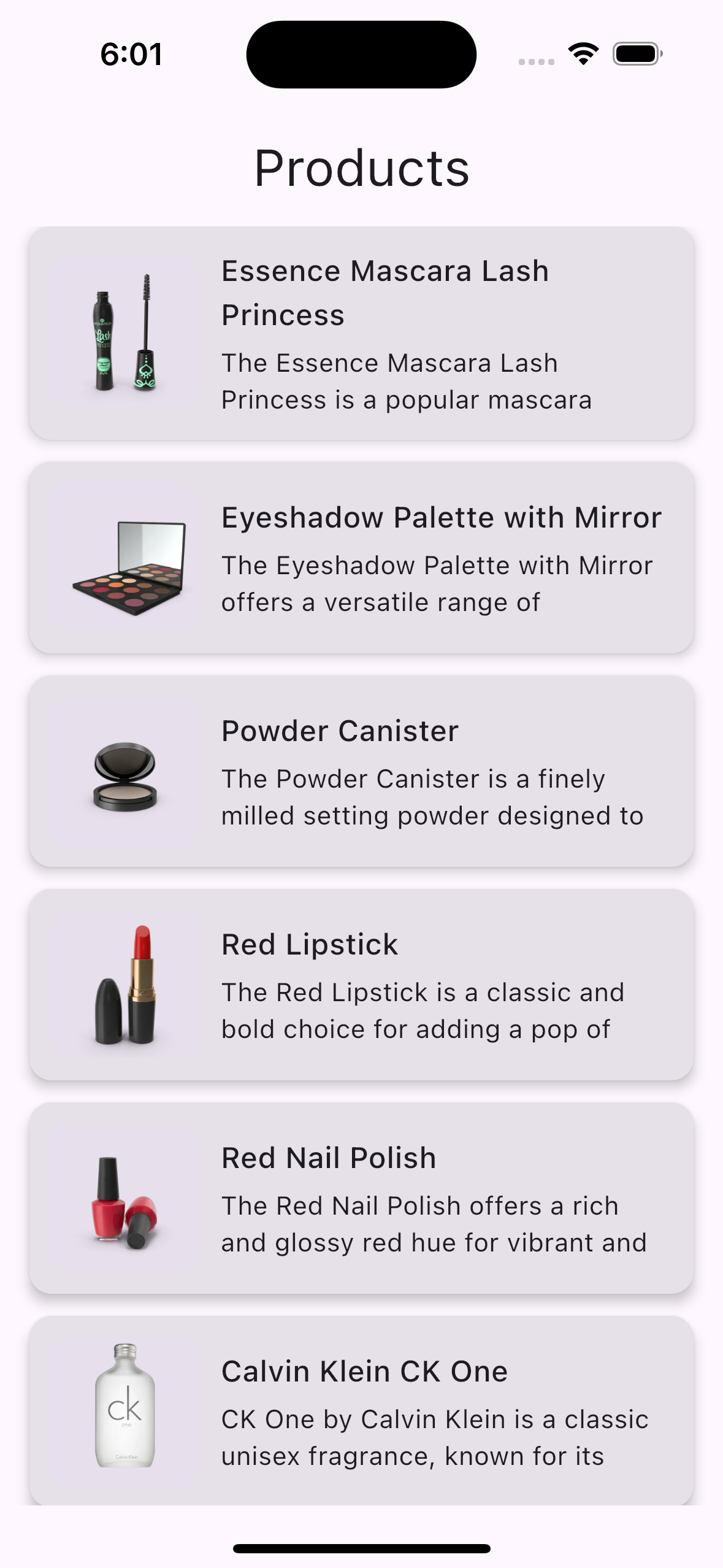
This screen is 100% shared UI code.
Step 7: Dependencies & Gradle Setup
Key shared dependencies:
- Kotlin Multiplatform
- Compose Multiplatform
- Ktor for networking
- kotlinx.serialization for JSON
- Kamel for image loading
Platform-specific engines:
- Android & Desktop → OkHttp
- iOS → Darwin
This ensures stability and performance across all platforms.
Press enter or click to view image in full sizePress enter or click to view image in full sizePress enter or click to view image in full sizeDesktop, Android and iOS — UI
Adding Firebase Firestore Integration
Now that our API integration and shared UI are working across platforms, the next step is to persist data.
In real-world apps, data rarely lives only in memory. We usually want to:
- Cache API responses
- Sync remote data to a database
- Serve UI from a reliable source (local / cloud)
In this section, we’ll integrate Firebase Firestore into our existing architecture.
Architectural Change
We’ll keep the structure clean by:
- Fetching data from the API
- Saving it to Firestore
- Reading data back from Firestore
- Exposing everything via the same shared ViewModel
This way, UI never talks directly to Firebase or the API.
Step 1: Firestore Data Source (Shared Interface)
We start by creating a Firestore-specific data source inside commonMain.
class ProductFirestoreDataSource {

    private val firestore = Firebase.firestore
    private val productsCollection = firestore.collection("products")

    suspend fun saveProducts(products: List<Product>) {
        products.forEach { product ->
            productsCollection
                .document(product.id.toString())
                .set(product)
        }
    }

    suspend fun getProducts(): List<Product> {
        return productsCollection
            .get()
            .documents
            .mapNotNull { it.data<Product>() }
    }
}
Why this approach works well
- Uses GitLive Firebase, which supports Android, iOS, and Desktop
- No
expect/actualneeded - Firestore logic is isolated from the rest of the app
- Easy to replace or extend later (pagination, offline sync, etc.)
Updating the Repository Layer
Next, we update the repository to coordinate API and Firestore.
class ProductRepository {

    private val firestoreDataSource = ProductFirestoreDataSource()

    suspend fun fetchFromApiAndStore(): List<Product> {
        val products = ApiClient.fetchProducts()
        firestoreDataSource.saveProducts(products)
        return products
    }

    suspend fun getFromFirestore(): List<Product> {
        return firestoreDataSource.getProducts()
    }
}
At this point, the repository is responsible for:
- Fetching fresh data from the API
- Persisting it in Firestore
- Providing a clean API to the ViewModel
Shared ViewModel: Firestore-Driven UI
Finally, we update the ViewModel so that the UI always reads from Firestore.
class ProductViewModel {

    private val repository = ProductRepository()

    private val _products = MutableStateFlow<List<Product>>(emptyList())
    val products: StateFlow<List<Product>> = _products

    init {
        loadProducts()
    }

    private fun loadProducts() {
        CoroutineScope(Dispatchers.Default).launch {

            // Fetch from API and store in Firestore
            repository.fetchFromApiAndStore()

            // Read from Firestore
            _products.value = repository.getFromFirestore()
        }
    }
}
Why this is a strong pattern
- UI does not know about API or Firebase
- Firestore becomes the authoritative data source
- ViewModel logic is shared across platforms
- Compose UI remains untouched
Note: Don’t forget to add required Firebase dependencies and configuration.
Full Source Code 📦
To make this article truly practical and easy to follow, the entire working codebase is available in a public repository.
The repository includes:
✅ Shared commonMain module (API, Repository, ViewModel)
✅ Compose Multiplatform UI (Android, iOS, Desktop)
✅ Firebase Firestore integration using GitLive Firebase [for iOS and android]
✅ Proper Gradle & KMP setup
✅ Platform-specific configurations for Android, iOS & Desktop
🔗 GitHub Repository:
https://github.com/purva-nayak/Firestore-KMP.git
Feel free to:
- Clone the repo
- Run it on any platform
- Use it as a starter template for your own KMP projects
And that’s a wrap 🎬
From a single API call to a fully shared API → ViewModel → Firebase → UI pipeline running on iOS, Android, and Desktop — all from one Kotlin codebase.
👉 No copy-pasting logic.
👉 No platform silos.
👉 No “rewrite it again for another platform”.
Just Kotlin Multiplatform done the right way.
If you’ve ever wondered “Can KMP really handle real apps?” — now you have your answer.
Clone it.
Break it.
Extend it.
Ship it. 🚢
If this helped you, consider:
⭐ Starring the repository
💬 Sharing feedback or questions
✍️ Following along for more KMP deep dives
Happy building! 👩💻👨💻